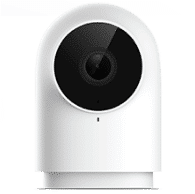
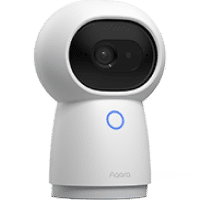
1. You can quickly press the button on the top of the camera three times to initiate ZigBee end device connection. G2H Pro support ZigBee 3.0 protocol and can connect 128 end devices at most.
2. You can scan the QR code generated by Aqara Home app to connect to internet. After the camera is powered on, please open the app and connect the device to 4GHz Wi-Fi, according to the voice prompt. Then, the QR code is generated, and you can scan the QR code through the G2H Pro lens for the network connection.
3. It supports 2.4GHz IEEE902.11b/g/n Wi-Fi protocol. And it doesn’t support 5GHz Wi-Fi. When connecting the mixing frequency router, it is recommended to separate 2.4GHz and 5GHz Wi-Fi to avoid abnormal connection.
4. Please check the distance between camera and router, and make sure the Wi-Fi signal is strong enough. If Wi-Fi connecting abnormally, please use Wi-Fi signal amplifier or mobile router to ensure that the device can receive Wi-Fi signals well. Please make sure connecting to 2.4GHz Wi-Fi. Please check if the Wi-Fi SSID or Wi-Fi PWD is correct.
5. It will take at least 18GB to store one day’s video. Generally, the TF card with 512GB capacity is expected to be stored for 4 weeks, totaling 28 days.
6. Yes. However, you can’t view the video through Aqara Home app because of no internet.
7. It supports the TF card with CLASS 4 above and format of FAT32. The capacity is 512GB at most. However, We suggest you use the TF card with CLASS 10 above.
8. At most 4 .
9. It supports magnetic suction and flat installation. You can use 3M glue in the accessories to paste the iron sheet on the non-magnetic material surface, or use fastening screws to fix the iron sheet on the non-magnetic material surface, and then fix the camera.
10. At most 5, maximum 5MB per ringtone.
You can quickly press the button on the top of the camera three times to initiate ZigBee end device connection. G2H Pro support ZigBee 3.0 protocol and can connect 128 end devices at most.
You can scan the QR code generated by Aqara Home app to connect to internet. After the camera is powered on, please open the app and connect the device to 4GHz Wi-Fi, according to the voice prompt. Then, the QR code is generated, and you can scan the QR code through the G2H Pro lens for the network connection.
It supports 2.4GHz IEEE902.11b/g/n Wi-Fi protocol. And it doesn’t support 5GHz Wi-Fi. When connecting the mixing frequency router, it is recommended to separate 2.4GHz and 5GHz Wi-Fi to avoid abnormal connection.
Please check the distance between camera and router, and make sure the Wi-Fi signal is strong enough. If Wi-Fi connecting abnormally, please use Wi-Fi signal amplifier or mobile router to ensure that the device can receive Wi-Fi signals well. Please make sure connecting to 2.4GHz Wi-Fi. Please check if the Wi-Fi SSID or Wi-Fi PWD is correct.
It will take at least 18GB to store one day’s video. Generally, the TF card with 512GB capacity is expected to be stored for 4 weeks, totaling 28 days.
Yes. However, you can’t view the video through Aqara Home app because of no internet.
It supports the TF card with CLASS 4 above and format of FAT32. The capacity is 512GB at most. However, We suggest you use the TF card with CLASS 10 above.
At most 4 .
It supports magnetic suction and flat installation. You can use 3M glue in the accessories to paste the iron sheet on the non-magnetic material surface, or use fastening screws to fix the iron sheet on the non-magnetic material surface, and then fix the camera.
At most 5, maximum 5MB per ringtone.

Camera

Camera Hub G2H Pro

Camera Hub G3

Camera Hub G2H

Smart Video Doorbell G4

Camera

Get the latest news from us.

Camera Hub G3

Camera G2H Pro

Click any Menu

FAQ

FAQ

Aqara Curtain Controller B1 supports three control modes such as local button control, sensor linkage control and app remote control. After the Wi-Fi network connection is turned off, the control still can be achieved via local button and sensor linkage.
5 Kg with a tube diameter of 38 mm 3.7 Kg with a tube diameter of 28mm
0.45Nm
Long press the reset button on the bottom of the device for 5 seconds until the blue indicator light is on, or you can use Aqara Home App to reset the device
This devide does not support "Power-off Manual Operation" function, namely, the curtain cannot be opened/closed manually after power-off.

FAQ

The Aqara Wireless Remote Switch H1 (Double Rocker) has two modes. It supports single press in the high-speed click mode, and 7 functions in the multi-function mode including single press left button, single press right button, double press left button, double press right button, long press left button and long press right button. The high-speed click mode means that the Aqara Wireless Remote Switch can respond very fast with the fastest responding speed of 50ms. In addition, the Aqara Wireless Remote Switch H1 (Double Rocker) also supports low battery alarm, Zigbee signal viewing, distributed networking, and accidental deletion protection, etc.
The Aqara Wireless Remote Switch H1 (Double Rocker) has two modes, and it supports single press in the high-speed click mode, and 7 functions in the multi-function mode including single press left button, single press right button, double press left button, double press right button, long press left button and long press right button. The high-speed click mode means that the Wireless Remote Switch can respond very fast with the fastest responding speed of 50ms.
The Aqara Wireless Remote Switch H1 (Double Rocker) can be attached to a wall using the adhesive sticker, placed on a desk or table, installed in the Aqara frame or in the traditional 86x86 cm size box (for wall switch).
Note:
1. If you need to install the switch in the traditional 86x86 cm size box, you need to open the battery cover first, and use a tool to make a hole in the battery cover before installing it.
2. If you need to install the switch on the Aqara frame, you need to tear off the non-slip silicone pad on the back of the product to expose the screw holes under the silicone pad, and then remove the battery cover for installation.
1. Single press the button 5 times continuously on the Aqara Wireless Remote Switch H1. If the Aqara Hub prompts voice message "Normal link confirmed", it indicates the hub and the switch are connected.
2. If it does not prompt a voice message, please move the Aqara Wireless Remote Switch H1 closer to the hub and try again. If there are still no voice messages, the Aqara Wireless Remote Switch H1 might be deleted or the battery has run down. Please refer to the user manual for instructions to add again or replace the battery.
3. Single press the Aqara Wireless Remote Switch H1 several times and go to the homepage of the app and select the Aqara Wireless Remote Switch H1 to check. If the status changes, it indicates the accessory is working properly.
1. Long press the button of the switch for more than 10 seconds. The indicator light will flash 3 times before restoring to factory settings.
2. If the switch has been bound to a hub, please delete it from the app first.
3. If the accidental deletion protection function is activated, please turn off this function before deleting the device.
The accidental deletion protection function prevents the device from being reset or unbound due to accidental operation. If this function is enabled on the Hub setting page, when the network is normal, long pressing the reset button will not reset the Aqara Wireless Remote Switch H1 (Double Rocker) or make it off-line.
If the battery power of the Aqara Wireless Remote Switch H1 (Double Rocker) is lower than 2.7V for 3 consecutive hours, the device will report a low battery alert.
To put it simply, the child devices do not require a hub, and the controller and actuator can be networked in pairs. For some Zigbee 3.0 strong current devices (such as the Aqara Smart Plug T1), you can click the reset button for 3 times when the device is not bound to any hub to enable the distributed networking mode. At this time, press and hold the button of the Aqara Wireless Remote Switch H1 (Double Rocker) for 10s to start distributed networking.
1. Open the app, go to the accessory adding page, select the Aqara Wireless Remote Switch H1 (Double Rocker), and select the corresponding hub.
2. Long press the button of the Aqara Wireless Remote Switch H1 (Double Rocker) for 10 seconds, and the indicator light will flash for 3 times quickly when the device is powered on.
3. If the device is successfully bound, the indicator light will flash twice slowly; if it fails, it will stay on for 1s.
4. If the addition fails, please move the switch closer to the hub and try again.
1.When you click the corresponding mode to switch, you need to click the button five times quickly until the gateway prompts “Normal link confirmed” (only supported in some Aqara hubs).
2.The device may be too far away from the hub, or fail to receive mode switching command issued by the hub due to signal interference.
3.If the device is offline, please reset and bind the wireless switch again.
Currently it supports the Aqara Camera Hub G2H, Aqara Hub M1S, Aqara Hub M2, Aqara Air Conditioning Controller P3, Aqara Smart Wall Outlet H1 (USB) and more devices will be supported. Please see https://www.aqara.com/support for more details.

FAQ

FAQ

FAQ

Both are smart wall switches with the same main functions. However, the former needs to be connected to the neutral wire and the live wire, and the latter only needs to be connected to the live wire for the power supply. You can choose based on the lighting wiring design of your home.
The wall switch needs to be connected to the wire. The most important function is to remotely and intelligently control the power of the connected circuit. To transform the ordinary electric light into a smart light, the wall switch is required; the wireless switch is a controller that can control wall switches and other devices via the app but cannot directly control non-smart lights independently.
Lights such as smart lights, color-changing lights, gradient lights, remote control lights and light strips, and high-power appliances such as bathroom heater are not supported.
Normally, the live wire is red, the neutral wire is black or blue, and the lamp load wire is generally green or yellow. A test by a professional electrician with professional tools such as electric pens should be performed before installation.
In the case of an incorrect connection, the wall switch may not work normally, and the switch may burn out in severe cases. Please strictly follow the wiring instructions, or hire a professional electrician for installation.
①Since the Smart Wall Switch (With Neutral, Single/Double Rocker) is connected to the neutral wire and the live wire, there is no minimum load requirement.
②For the Smart Wall Switch (No Neutral, Single/Double Rocker), normally each load can support 3W energy-saving lamps, LED lamps or 16W fluorescent lamps at least. However, for some lamps of small brands or lamps with poor materials, due to the internal circuit design of the lamps, even if the power is greater than the above requirements, it may cause abnormal phenomena such as lamp flicker and switch crashes. Please choose the lamp carefully.
*Please note: If it is an old-fashioned tube lamp with a starter, please replace the electronic starter.
When the power of the lamp connected to the Smart Wall Switch H1 EU (No Neutral Version) is lower than the minimum power requirement, sometimes it will flicker when the switch is turned off. In addition, lamps of mainstream brand works better with Smart Wall Switch H1 EU (No Neutral Version) and some lamps of small brands or copycat manufacturers may flicker or cause the switch to crash due to the poor internal circuit design and material problems. Please choose the lamps properly.
Firstly, by using the Smart Wall Switch H1 EU with the Wireless Remote Switch, dual-/multi-control functions can be used very easily. The Wireless Remote Switch can be put in most places in your home to control the Smart Wall Switch via smart automation; secondly, if the original switches in your home are dual-controllers and you only replace one of the switches with the Smart Wall Switch H1 EU, please keep the other ordinary switch short-circuited and replace it with a wireless switch, otherwise, the Zigbee communication module of Smart Wall Switch can not be powered when the other switch is powered off and the switch cannot be controlled intelligently.
The size of the product is 85.8*86*37.55 (mm), and the depth of the Smart Wall Switch installed inside the wall is within 30mm.

FAQ

FAQ

FAQ

FAQ

FAQ

FAQ

You can turn the home electronics on or off using your smartphone with the smart plug. And you can schedule the home appliances to automatically switch on and off anytime. It provides you an interesting smart home experience.
The Aqara Smart Plug is a Zigbee protocol enabled device. It requires the Hub to function and cannot directly connect to Wi-Fi.
First, ensure that the Hub is operating normally. Then open the Aqara Home app, select the “+” in the upper right corner. Enter accessories page and choose Smart Plug, then follow the instructions in the app.
Long press the reset button for more than 5s. When the red indicator light blinks for 1s and changes to a quick, blue flashing, the Aqara Smart Plug has been successfully reset.
If the external network is down, the app control function for Aqara Smart Plug will no longer be available. But the local control for the Aqara Smart Plug will continue to be functional and its connection with other smart devices will function normally.
Due to safety reasons, when the power is off, the Aqara Smart Plug does not save settings. However, there is a “power off memory” option in the app. By choosing this option, the Smart Plug settings will be restored to its pre power off status.
The maximum load power for the Aqara Smart Plug is 2300W. The load voltage and current are 250V~ and 10A, respectively. Appliances with load power, voltage and current that do not exceed these maximums can be used with the Smart Plug.
For the specific instructions, please refer to the “effective range test” instructions in the quick start guide . If the Hub indicates “connection normal” then it means the Smart Plug and Hub are connected effectively. If there is no indication, please move the Smart Plug closer to the Hub and try again.
The maximum load power for the Aqara Smart Plug is 2300W. The load voltage and current are 250V~ and 10A, respectively. Appliances with load power, voltage and current that do not exceed these maximums can be used with the Smart Plug.

FAQ

FAQ

FAQ

FAQ

FAQ

FAQ

FAQ

FAQ

FAQ

FAQ

FAQ

FAQ

FAQ

FAQ

FAQ

FAQ

30KG
8N·m
Please long-press the reset button for 5 seconds until the blue indicator light goes on,and then release it.
No, the motor can not be turned on/off manually after it powers off.
Please adjust the direction through "Adjust opening/closing direction of curtain" in "Settings" in the app.
Please long-press the Stop button "||" on the control box for 5 seconds until the blue indicator light goes on and then release it. When you hear the motor short beeps three times, the motor will return to normal status after it turns forward and backward once.
When the motor runs continuously for about 4 minutes, the motor will stop running and enter the overheating protection state. When the temperature returns to the appropriate level, it will work normally again (about 10-30 minutes to recover).
When the route of the motor is not set completely, the motor cannot be controlled through the app, and the homepage of the app will not display the control buttons. You need to complete the route settings according to the guideline, and then enter the app to control it.
The "dimming control" feature is suitable for Venetian blinds, Shangri-La blinds, gauze curtain, etc. You can use this feature to control the blade inclination angle of the Venetian blinds and Shangri-La blinds or set the overlapping area of two layers of gauze curtain to adjust indoor lighting.

FAQ

FAQ

1. The equivalent capacity of a standard single battery out of the doorbell factory is about 2900 mAh. When you replace it with a new battery, please choose the battery with a capacity not less than 2900 mAh.
2. If connected with HomeKit, the doorbell will record video if it is triggered and there’s motion detected until the motion ends, which may consume more power and shorten the battery life compared to using the doorbell in Aqara Home only.
3. If the loitering detection interval is configured too short, the doorbell may be frequently triggered, which may shorten the battery life.
4. Battery life can be shortened by using new and old batteries together, using other non-LR6 batteries or non-1.5V batteries.
5. If the doorbell is far away from the repeater (more than Max. 5 meters), or there is too much wireless interference in the surroundings, the doorbell will need to increase the transmission power for communication, which will result in the higher power consumption and shorten the battery life.
6. In the Power Saving Mode, the PIR detection function is turned off, and the doorbell can only be triggered by pressing the bell, remotely viewing video in the app, etc., which will greatly extend the doorbell life.
1. There might be factors in the surroundings of the doorbell causing the false-triggering of PIR (e.g. thermal disturbances due to big gaps of temperature within the detection range, such as hot air blowing continuously). In this case, please lower the sensitivity or temporarily switch to the Power Saving Mode (PIR function will be turned off.).
2. If the loitering detection interval is too long, the person detected may have left out of the monitoring field when the video recording starts. In this case, please shorten the detection interval.
1. The doorbell can use AA batteries or rechargeable lithium batteries with 1.5V discharge voltage. If NiMH batteries with 1.2V output voltage are used, the electricity statistics will be inaccurate. LR6 alkaline AA batteries are recommended.
2. It is recommended to replace 6 new batteries of the same model at a time. If new and old batteries or different batteries are mixed to use, the battery life will be shortened.
1. Check whether the Power Saving Mode is enabled. If enabled, the video recording can only be triggered by pressing the doorbell or remotely viewing video in the app. PIR can work if switched to the normal mode.
2. Check whether the video recording of loitering detection is turned on.
3. Check whether the loitering detection interval is too long.
If you connect to DC power supply, both terminals can be connected to positive or negative poles.
Please check whether the distance between the doorbell and the repeater is out of the allowable range, or other Wi-Fi co-frequency interference sources are surrounded, if yes, you can improve the connection by adjusting the position of the repeater or modifying the Wi-Fi channel.
Please ensure that the indicator light switch is turned off. If the doorbell is connected to HomeKit, please turn off the indicator light switch in Apple "Home" app to ensure the synchronization.
2.4 GHz Wi-Fi protocol can be applied between the doorbell and the repeater, and between repeater and the router. The doorbell cannot bind with other child devices directly. To work with other Aqara child devices, an Aqara hub is required.
The Video Doorbell G4 is recommended to be installed on a porch or in other shaded areas.
The screws on the back plate are designed to be immovable to avoid the screws falling off and missing during disassembly of the doorbell. Do not pull out the screw forcibly.
Only MP3 not larger than 5 Mb can be uploaded, and each device only supports a maximum of five customized ringtones.
Although the doorbell does not have the hub function, the localization of some doorbell functions can still be realized, such as playing a customized ringtone on the repeater after pressing the doorbell.
1. The face recognition function is turned off by default. You can open the device settings page - More Settings - Detection - Face Recognition, turn the function on and set the relevant parameters.
2. The sensitivity of face recognition is medium by default. If it cannot detect any face even if the function is enabled, please adjust to the high sensitivity.
3. Please check whether the light surrounding the doorbell is good. Face recognition ratio can be lowered under backlight, dim light. In addition, it can be affected by infrared night vision, starting image distortion calibration.
The face recognition has two functions of face capture and face matching, both of which are performed locally on the device. However, to display and mark the face, it needs to connect to the cloud server. When the doorbell is disconnected from the router, it will not affect the face capture and matching, nor affect the local execution of automations related to face recognition. However, the newly captured face image after the doorbell disconnected from the router cannot be displayed on the app.
It is the ambient temperature of the doorbell detected by the high and low temperature alarm. It will alarm before the battery fails due to the impact caused by ambient temperature.
The doorbell relies on the Wi-Fi transmitted by the repeater for connection, and has one-to-one binding configuration with the repeater before leaving the factory. User cannot unbind the doorbell and the repeater.
PIR detection sensitivity is divided into high and low levels. When moving horizontally (90° to the PIR detection direction), PIR can detect about 4 meters with high sensitivity, and about 2 meters with low sensitivity. When moving vertically (parallel to the PIR detection direction), the detection distance will be shortened. PIR horizontal detection angle is 120°, and vertical detection angle is 80°

FAQ

Scroll to Top

CERAGEM Project

Founded in 1998, CERAGEM is a global provider of comprehensive home healthcare solutions, guided by the philosophy that health management begins at home.


Aqara provides a diverse range of smart products, including sensors, smart lighting, and smart plugs. Leveraging the Aqara Developer Platform, these devices are deeply integrated with the CERAGEM Wellness System.


This collaboration not only enhances the commercial value of CERAGEM’s premium therapeutic equipment but also creates a more comfortable and convenient wellness environment for customers.

HAUS UPDATA Health Care

HAUS UPDATE is an innovative initiative that integrates IoT, AI, and lifestyle behavior data to create health-centric, modernized living environments in Japan.


Aqara contributed a comprehensive suite of smart home devices, including presence sensors, motion sensors, door and window sensors, vibration sensors, and bubs. 1,400+ Aqara devices were deployed in over 110 households.


In addition, Aqara provided API access via the Aqara Developer Platform and offered technical support to the project team, enabling capabilities such as device status monitoring, remote control, and account linking.

KAFD Apartment

The King Abdullah Financial District (KAFD) Apartment is a key milestone in Saudi Arabia’s urban development under Vision 2030.


Focused on high-end urban living, the project aims to deliver a modern and intelligent residential experience. Aqara provides a comprehensive array of smart home devices, including doorbells, door locks, smart lighting, and curtains. 10,000+ devices were deployed in over 500 apartments. All devices are seamlessly managed through the Aqara Home app, enabling a more convenient, comfortable, and connected living experience.

ADE Properties

ADE Properties is a premier Emirati-owned development company and part of the Al Dallal Group, a leading name in the UAE real estate sector.


Aqara partnered with ADE Properties to provide a complete smart home solution for 80+ apartments the ADE project. The solution enables energy-saving automation, intelligent lighting control, and smart curtain control throughout each apartment. Residents can also monitor and manage connected devices through a centralized tablet interface.

The project enhances convenience and provides a more connected living experience through integrated smart home technology.

Sobha Reserve

Sobha Reserve is a premium villa community developed by Sobha Group in Dubai, featuring Aqara’s whole-home smart solution.


The project incorporates Aqara Ssmart door locks, thermostats, smart switches, sensors, and smart curtains. Through the Aqara Home app, residents can manage lighting, air conditioning, and curtains throughout the home.


This solution enables energy-saving automations, remote control, and intelligent scene management, enhancing convenience and operational efficiency.

MBRHE Project

The Mohammed Bin Rashid Housing Establishment (MBRHE) is a large-scale housing and community development initiative led by the Dubai government.


Aqara partnered with e&, a leading technology and telecommunications provider in the UAE, to provide smart home solutions and services for 350 villas within the MBRHE project. Each villa is equipped with more than 15 types of smart devices, enabling intelligent lighting control, curtain automation, kitchen safety monitoring, and air conditioning control.


The project enhances residents’ quality of life through smart home technologies while supporting the development of modern and sustainable communities.

GK Zhelezno Project

GK Zhelezno is a federal-level real estate developer in Russia, founded in 2011. The company has delivered seven large-scale residential projects totaling over 2.6 million square meters, making it one of the country’s leading developers.


The project includes key Aqara devices such as sensors and smart switches, paired with Yandex speaker to enable Russian-language voice control. Built on Zigbee wireless technology, the system supports both local and remote control and continues to operate even without an internet connection, making it well suited to residential environments and varying network conditions.

Episode Yongsan 241 Hotel

Episode Yongsan 241 is a modern co-living and rental complex located near Yongsan Station in Seoul. It offers flexible, premium living spaces for individuals and small families seeking short or long-term stays without the commitment of homeownership.


The project uses a wide range of Aqara smart devices, including hubs, door locks, smart plugs, temperature and humidity sensors, motion sensors, and presence sensors. These devices support a range of smart functions, such as fingerprint-based door access, environmental monitoring, automatic heating control based on temperature and humidity levels, and sleep status detection.


In addition, the project is integrated with the property management system through Aqara APIs, enabling real-time device monitoring and remote operation.

Sfeel Smart Farm Café

Sfeel is one of the leading investors in South Korea’s smart farming industry, operating under its independent smart farm brand “Sun In Farm”.


By integrating 200+ smart devices for each location, including the Aqara Presence Sensors and Controllers, the project enables automated water supply, lighting control, and dimming adjustment. The solution streamlines daily operations and enhances overall farm management efficiency.

East Lancashire Cricket & Sports Club

This club is one of the oldest cricket clubs in Northern England. As its operations expanded and the number of annual events increased, the club faced several operational challenges, including fragmented equipment management across different areas, high energy consumption, limited security monitoring coverage, and inefficient remote maintenance.


To address these challenges, Aqara deployed 300+ smart devices, including cameras, hubs, sensors, and controllers to build an complete smart system. The solution provides full-area monitoring, intelligent control, optimized HVAC management, and remote operation & maintenance capabilities. The deployment significantly improved operational efficiency and provided a more comfortable environment for venue users.


This project showcases Aqara’s expertise in commercial smart space solutions and highlights how intelligent technologies can accelerate the digital transformation of traditional sports venues.

Aqara Zigbee-Geräte können zu Aqara Home hinzugefügt werden, da S1 Plus bereits ein Aqara Zigbee Hub ist. Das Hinzufügen von Matter-Zubehör (wie Matter über Thread) erfordert einen Matter-Controller wie den Hub M3, der zuerst in Aqara Home eingerichtet werden muss; danach können sie auf dem Bildschirm konfiguriert werden.
Aqara Zigbee-Gerätetyp
Matter-Gerätetyp
Licht
Dimmbare Plug-in-Einheit
Steckdose
Montierte Ein/Aus-Steuerung
Schalter
Montierte dimmbare Laststeuerung
Klimaanlage
Raumklimaanlage
Fensterabdeckung
Fensterabdeckung
Kamera
Luftqualitätssensor
Thermostat
Thermostat
IR-Gerät
Ein/Aus-Plug-in-Einheit
Türschloss
Türschloss
Temperatursensor
Ein/Aus-Licht
Luftfeuchtigkeitssensor
Dimmbare Lampe
TVOC-Sensor
Licht mit Farbtemperatur
Button
Erweiterte Farblichter
Fußbodenheizung
Aqara Zigbee devices can be added to Aqara Home as S1 Plus is already an Aqara Zigbee Hub. Adding of Matter accessories ( such as Matter over Thread ) need a Matter controller like Hub M3 that's set up in Aqara Home first; afterthat, they can be configured on screen.
Aqara Zigbee Device Type
Matter Device Type
Light
Dimmable Plug-In Unit
Outlet
Mounted On/Off Control
Switch
Mounted Dimmable Load Control
Air Conditioner
Room Air Conditioner
Window Covering
Window Covering
Camera
Air Quality Sensor
Thermostat
Thermostat
IR Device
On/Off Plug-in Unit
Door Lock
Door Lock
Temperature Sensor
On/Off Light
Humidity Sensor
Dimmable Light
TVOC Sensor
Color Temperature Light
Button
Extended Color Light
Floor Heating

Please select your country/regions

사용자위치를선택하세요.

Bitte wählen Sie Ihr Land/Ihre Regionen aus

North America

Select another country or region to get content and online shopping options that apply to your location

사용자위치를선택하세요.

Wählen Sie ein anderes Land oder eine andere Region aus, um Inhalte und Online-Einkaufsoptionen zu erhalten, die für Ihren Standort gelten

Don’t Miss Out: Spring Savings of Up to 30% on European Amazon Stores! Learn More